
SparKo user guide
SparKo is a Windows tone librarian for Positive Grid Spark amps. It keeps your tones as plain files, sends them to the amp over Bluetooth, and (with Pro) lets you tune the amp live and ask an AI for new tones.
1. Install
Requirements: Windows 10 (1809 or newer) or Windows 11, 64-bit; a Bluetooth 4.0+ adapter (built in on most laptops); a Positive Grid Spark 2, Spark 40, GO or Mini.
- Download the zip and unzip it anywhere, for example
C:\SparKo. No installer. - Run
SparKo.exe. The first time, Windows may show "Windows protected your PC": click More info, then Run anyway. - On first launch SparKo creates a
Spark_Libraryfolder next to the exe with a starter set of tones, the pedal pictures and the pedal database. Everything you add lives there. Back up that folder to keep your tones; copy it to a new PC to move them.
Portable: apart from a small settings entry in the Windows registry, the app writes nothing outside its own folder. Delete the folder and it is gone.
2. The screen
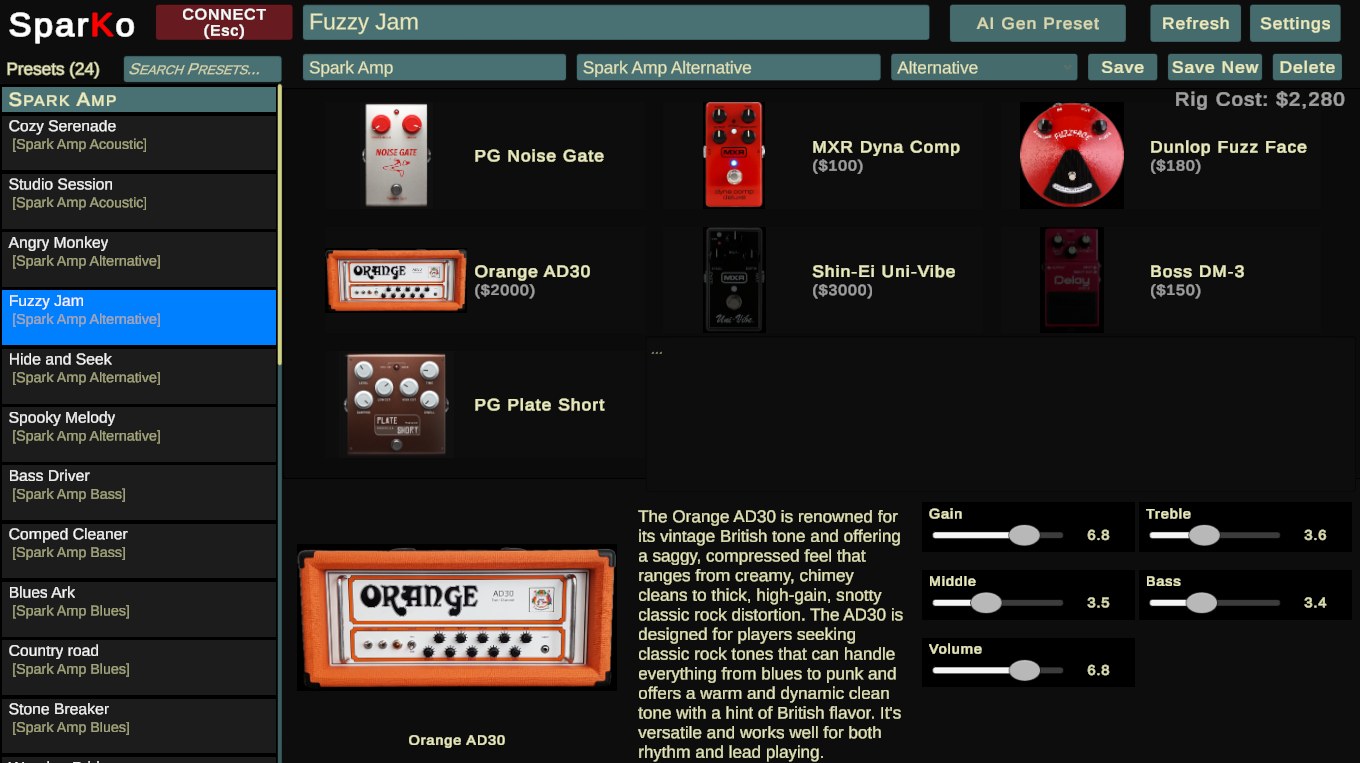
- Left panel: the preset list. Search box at the top; double-click the Presets title to switch between all presets and your setlist.
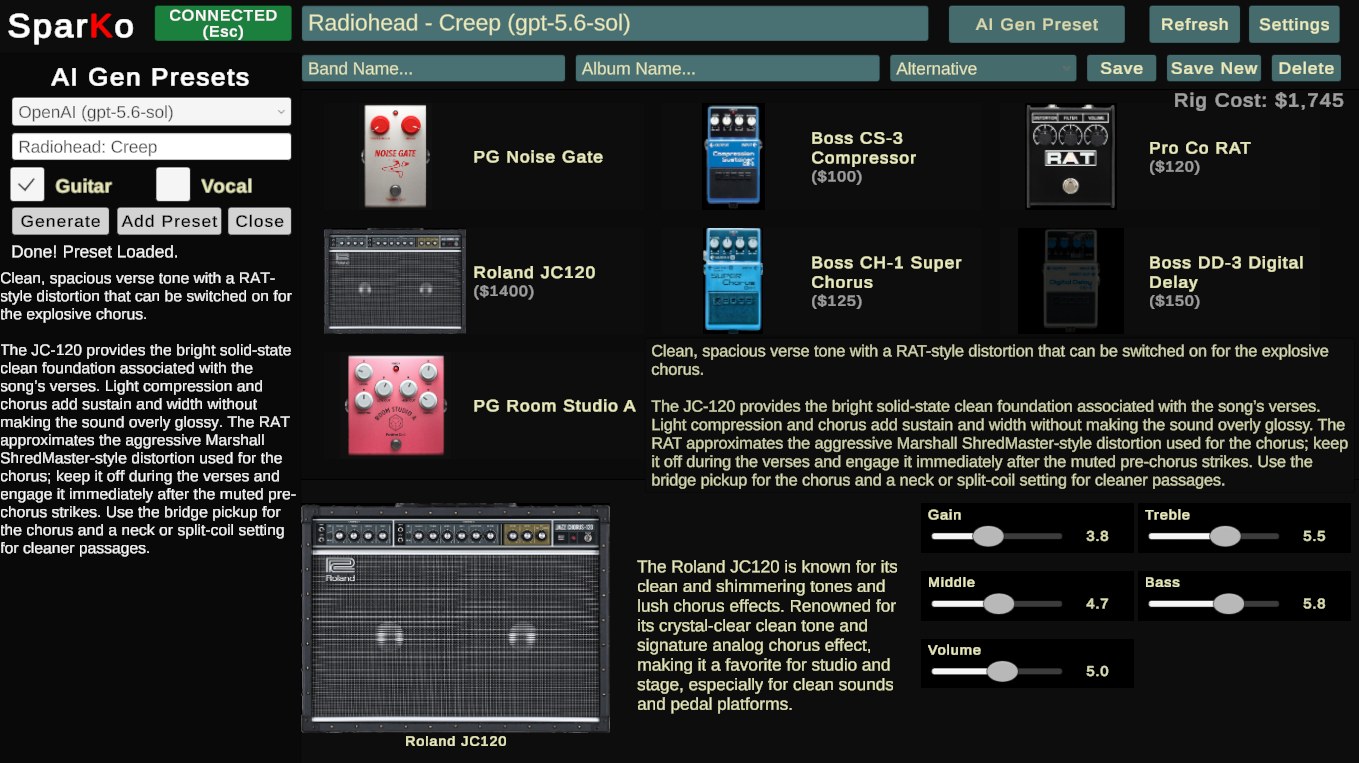
- Top bar: the current tone's name, band, album and genre, plus Save, Save New (duplicate) and Delete. Refresh rescans the library folder. Settings and AI Gen Preset open their panels. CONNECT (Esc) opens the amp panel.
- Signal chain: the amp and pedals of the current tone, with the rig's real-world cost. Click one to edit its knobs; double-click it to swap it for another model.
- Bottom: the selected pedal's picture, description and knobs (drag the sliders), with an ON / OFF switch.
3. Library
Editing a tone. Change knobs, swap pedals, rename, re-tag, rate it with the stars, then press Save. Save New copies the tone under a new name and leaves the original alone.
Swapping a pedal or amp. Double-click it in the signal chain. A gallery of every model in the same category opens, with a preview picture and description; double-click a model (or select it and press Select) to put it in the chain.
Setlists. Right-click any preset for Add to Setlist / Remove from Setlist, or add everything the search currently shows in one go. Double-click the Presets title to view the setlist.
Right-click menu. Besides setlist items: Send to Amp (play now), Push to Amp slot N and Delete Preset.
Where tones live. Each tone is a folder under Spark_Library\preset_backup\<genre>\ holding a preset.json in the same format the Spark app uses. Tags, ratings and setlists are in user_tags.json.
4. Amp connection
- Turn the amp on. Make sure the Positive Grid app on your phone is not connected to it: a Spark accepts one Bluetooth controller at a time.
- Click CONNECT (Esc) or press C. The button turns green when connected. The amp panel (Esc) shows the 8 slots (4 on older Sparks) with the name of the tone in each; the one the amp is playing is marked ACTIVE.
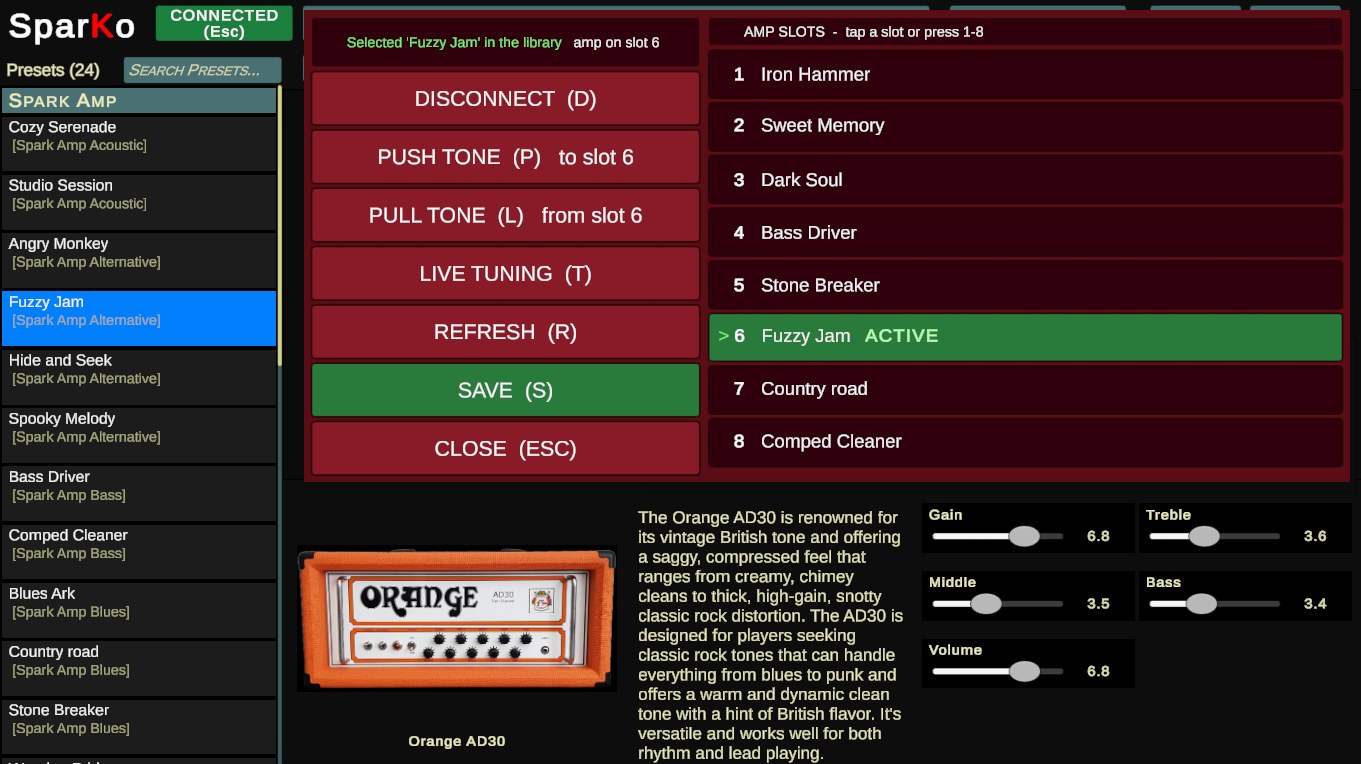
With the panel open:
- Tap a slot (or press 1-8) to switch the amp to it, exactly like the amp's own buttons.
- PUSH TONE (P) writes the tone open in SparKo into the active slot. Send to Amp (play now) in the right-click menu plays a tone without saving it to a slot.
- PULL TONE (L) reads the active slot into SparKo: if that tone is already in your library it is selected and updated with the amp's knob values, otherwise it is added under Uncategorized. Use it to capture tones you built on the amp or in the Spark app.
- REFRESH (R) re-reads the slot names. DISCONNECT (D) releases the amp so the phone app can connect again.
5. Live Tuning (Pro)
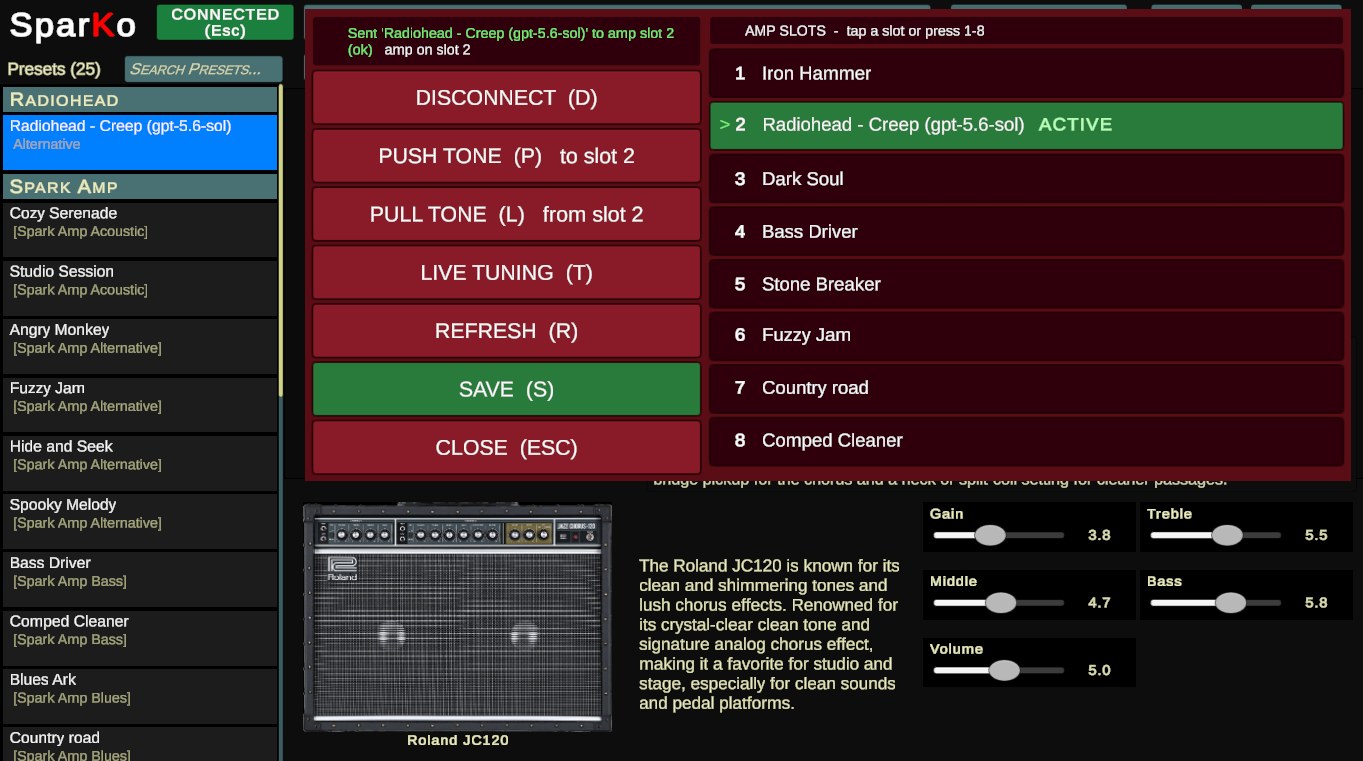
Press LIVE TUNING (T). SparKo now mirrors the amp: every knob you drag, every pedal you switch on, off or swap is heard on the amp immediately, and nothing is saved until you say so. The compact live panel shows the slot grid (1-8 to switch) with SAVE (S), which writes the tone to both the amp slot and your library, and RETURN (T) to leave without saving. Load a different preset from the list while live tuning and the amp follows.
6. AI tones (Pro)
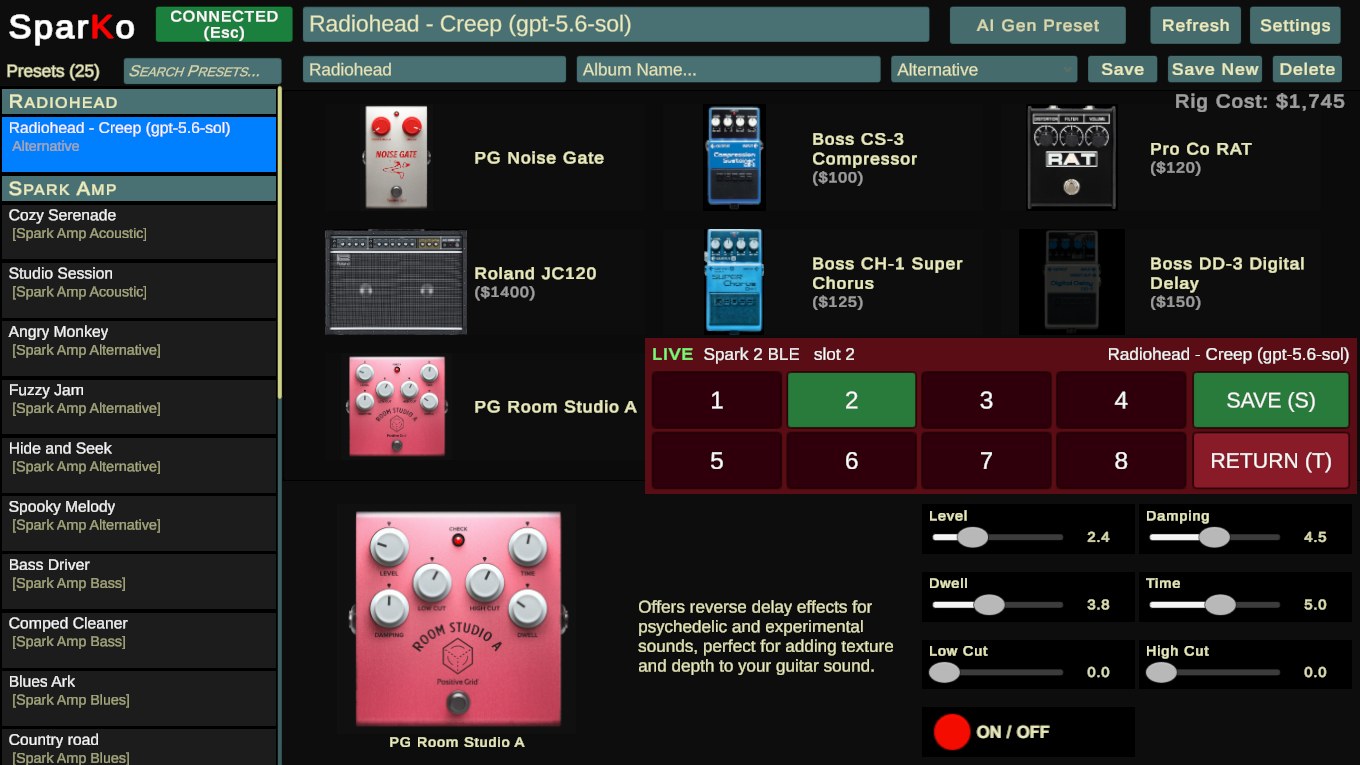
SparKo can ask an AI model to design a tone from a description ("the lead sound on Comfortably Numb", "warm jazz clean with a touch of chorus"). It uses your own account with the AI provider, so you need an API key from one of: OpenAI, Anthropic (Claude), Google (Gemini), xAI (Grok) or DeepSeek. Keys are pay-as-you-go with the provider; a tone costs a fraction of a cent.
- Open Settings and click the button for your provider (for example CLAUDE KEY). A text file opens.
- Replace the x's on line 1 with your key, save the file, close it. The lines below list the models the file offers; the ones ending in
*appear in SparKo's dropdown, so move the star to pick other models. - Open AI Gen Preset, choose the provider/model, describe the sound and press Generate. The tone loads into the editor for you to try and tweak; Add Preset saves it to the library. Tick Vocal to also get a vocal-channel suggestion for Spark models with a mic input.
Your keys stay in Spark_Library\api_keys\ on your PC and are sent only to that provider. SparKo has no server in the loop.
7. Settings
- API keys: one button per AI provider, see above.
- Use Real Pedal Graphics: photos of the original hardware instead of the schematic pedal pictures.
- Normalize Volume: sets the amp's master volume knob to the chosen value on every preset currently shown in the list, so switching tones does not jump in loudness. It asks before changing anything.
- Export all presets to zip / Export setlist to zip: writes
Spark_Library\preset_backup.zipin the layout the Positive Grid app's Restore backup expects, for getting tones into the phone app without Bluetooth. (Positive Grid is retiring that route in 2027; pushing over Bluetooth is the way forward.) - SparKo Pro license: see below.
8. Free, trial and Pro
Everything in the library and the amp connection is free. Live Tuning and AI tones are Pro features. A new install gets a 14-day Pro trial; it starts the first time SparKo runs with an internet connection (the trial is tracked on our server, so the PC needs to be online now and then while it runs). Settings shows the days left.
A Pro license is a one-time purchase and works on up to 3 computers. Paste the key from your purchase page or email into Settings and press ACTIVATE LICENSE. To move it, press DEACTIVATE THIS COMPUTER on the old machine first. SparKo re-checks the license online about every two weeks; it keeps working offline in between.
9. Keyboard shortcuts
| Key | Does |
|---|---|
| Esc | Open / close the amp panel |
| C / D | Connect / disconnect the amp |
| P | Push the current tone to the active slot |
| L | Pull the active slot into the library |
| T | Enter / leave Live Tuning |
| R | Refresh the slot names |
| S | Save the current tone to the amp slot and the library (amp panel or live tuning open) |
| 1-8 | Switch the amp to that slot (amp panel or live tuning open) |
| Up / Down | Move through the preset list |
Shortcuts are ignored while you are typing in a text field.
10. Troubleshooting
"Connect failed" / amp not found. Check Bluetooth is on in Windows, the amp is powered and within a few metres, and the Positive Grid app is disconnected (close it on the phone). If the amp was connected to something else moments ago, turn it off and on again: a Spark's Bluetooth can get stuck after rapid reconnects. Try C again.
"Bridge exited". The small helper program that talks Bluetooth (SparKoBridge.exe, inside the SparKo folder) could not start. Antivirus quarantining it is the usual cause; restore it or re-extract the zip.
Pro features say "trial ended" or "go online". The trial needs one internet connection to start, and must reconnect at least every 3 days while it runs. Buying a license removes the limit.
Tones missing after moving the folder. SparKo reads only from Spark_Library next to the exe; move the whole folder, not just the exe.
Getting help. Email support and attach %USERPROFILE%\AppData\LocalLow\nateRo\SparKo\Player.log, which records what happened in the session.